



Camtasia 2025
€162,15
Your complete video editing solution.
Whether you make videos for marketing and sales, internal training, customer success, virtual or in-person learning, demos, social media, or pretty much anything else, Camtasia helps you push past your boundaries and break new ground.
Brand: TechSmith
Operating system: Windows/Mac
Language: English, French, German
Description
What’s new in Camtasia 2025
Make Cursor Movements Look Cinematic with New Effects

Camtasia’s new cursor effects add motion blur, dynamic movement, and elevation to make your cursor clearer and more engaging in screen recordings.
Your cursor is one of the most important tools in a screen recording—now, Camtasia gives you even more control over how it moves and appears with three new cursor effects designed to enhance clarity and engagement.
New cursor effects:
– Motion Blur Effect – Smooth cursor movement with a natural blur for a more polished look.
– Kinetic Cursor – Add momentum to cursor movement, making it feel dynamic and fluid.
– Cursor Elevation – Bring the cursor to the front, ensuring it remains visible above callouts, annotations, and effects.
Why you’ll love these new cursor effects:
– Make cursor movements easier to follow in tutorials and demos.
– Add a professional touch with smooth, realistic motion.
– Keep the cursor visible and clear, even in complex visuals.
With these new effects, your cursor is more than just a pointer—it’s a storytelling tool.
Eliminate Distractions with AI Background Noise Removal

Camtasia’s AI Background Noise Removal filters out distractions like fans, chatter, and clicks—keeping the focus on your voice.
Background noise is unpredictable—whether it’s a lawn mower outside, a noisy fan, or unexpected interruptions at home. With AI background noise removal in Camtasia 2025, you can isolate your voice and remove distractions without worrying about your recording environment.
Unlike other tools, Camtasia’s AI noise removal effect isn’t permanent—you can adjust it anytime or revert to the original audio if needed.
Ways to use AI background noise removal:
– Eliminate distractions like fan noise, keyboard clicks, and background chatter from your audio.
– Record anywhere without worrying about your surroundings.
– Clean up audio after recording–adjust noise reduction levels or turn it off anytime.
Forget the hassle of re-recording due to unexpected noise. Record first, fix the audio later, and let Camtasia keep the focus on your voice.
Live Camera Preview During Recording
With Camtasia you now have the option to see your camera feed in a picture-in-picture window while recording, providing flexibility to move and adjust later without permanently burning it into the recording.
Editing and Adjustments to Dynamic Captions
Camtasia now provides expanded editing for dynamic captions including the addition and removal of words and spaces.
Features
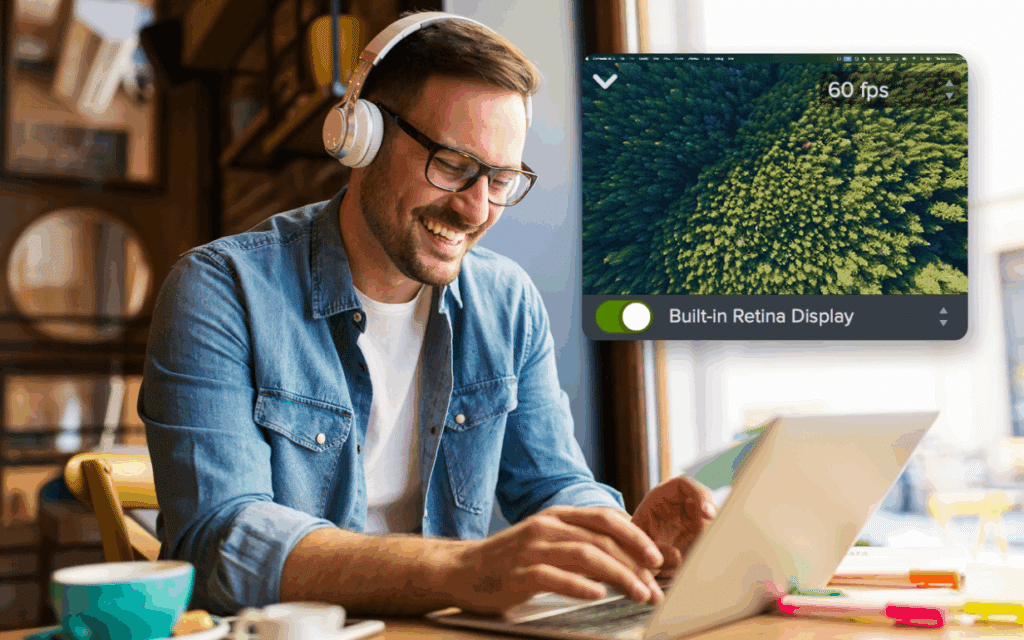
Multitrack screen recorder
Create professional-quality videos that captivate your audience with Camtasia’s multitrack screen recording capabilities. Record your screen, camera, and audio in stunning 4K, all while capturing meta-data like cursor paths and window sizes for unparalleled editing control. Whether you’re creating software demos, tutorials, or educational content, Camtasia 2025 lets you edit your videos with precision, saving you time while delivering standout results.
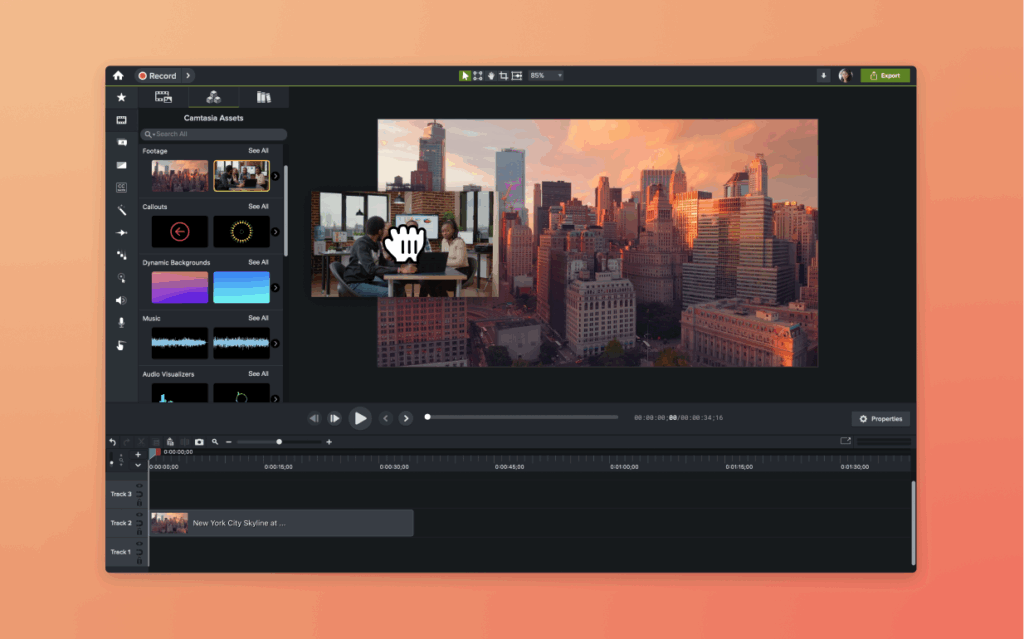
Video editor
Camtasia is the go-to video editor for anyone looking to create engaging videos, whether you’re a beginner or an experienced content creator. From screen recordings to educational videos, Camtasia is the perfect all-in-one tool for creating high-quality content on both Windows and Mac platforms.
Custom cursor effects
Add cinematic flair to your tutorials, walkthroughs, and explainer videos with custom cursor effects in Camtasia.
 Motion blur effect
A jittery cursor can be distracting. The motion blur effect adds a soft blur to your cursor’s movement, making transitions appear more natural and professional.
 Kinetic cursor effect
With a kinetic cursor, your pointer moves with momentum, just like it would in real life. It feels like it’s being pulled and pushed, making your tutorials more fluid and engaging.
 Cursor elevation effect
Want to make your cursor stand out? Cursor elevation lets you lift your pointer above callouts, annotations, and effects, ensuring it never gets lost in the visuals.
System requirements
Windows
– Microsoft Windows 10 (64-bit) 20H2 version or later
(Recommended: Microsoft Windows 11 (64-bit) 22H2 version or later)
– Intel® 8th Gen or newer CPU – or AMD Ryzen™ 2000 Series or newer CPU
(Recommended: Intel® 12th Gen or newer CPU – or AMD Ryzen™ 4000 Series or newer CPU)
– 8GB RAM minimum
(Recommended: 16GB RAM or more) 2GB GPU memory (4GB or more recommended)
– 4GB of available disk space
(Recommended: SSD with 4GB of available disk space)
Mac
– macOS 11.0
(Recommended: macOS 13.0 or later)
– Intel® Core™ i5 Processor with 4 CPU Cores; or gen 1 M1 SoC
(Recommended: 2.4 Ghz Intel® Core™ i5 Processor with 4 CPU Cores or better; gen 1 M1 Pro / Pro Max SoC)
– 8GB of RAM
(Recommended: 16GB of RAM or greater)
– 4GB of available disk space
(Recommended: SSD with 4GB of available disk space)